- manager reports
- hybrid office
- analytics
- privacy
- enterprise
Team Reports for Managers in a Hybrid Office
Give department heads office reports narrowed to their own teams: utilization, peak days, no-shows and weekday presence, with names only if you allow it.
Imagine Karolina, head of engineering at a 300-person company. Her department has 45 people in three teams. At the Monday leadership meeting the CFO asks a fair question: "Your teams agreed on two office days a week. Is that actually happening?" Karolina does not know. She has a feeling, a few anecdotes and a calendar full of video calls.
The office manager does have the data, but it covers the whole company. Exporting it and sending it to a department head means sharing other departments' numbers too, and possibly names. So the question waits, gets answered with a guess, or turns into a spreadsheet that is out of date by the next meeting.
Desk & Park handles this with a dedicated role: the manager, who sees the same reports as the board, narrowed to the departments and teams they are responsible for.

Step 1: the administrator sets the scope
The manager role is available on the Enterprise plan. Setting Karolina up takes an administrator two minutes:
- In User Management, change Karolina's role to Manager.
- Open the menu next to her name (⋮ → Reporting scope) and tick what her reports should cover. Ticking whole department for Engineering includes all of its teams, also teams added later. Alternatively, tick individual teams only.
- Save. Saving sets the scope to exactly what is ticked, and the change is recorded in the audit log.
The scope is built from the department and team fields on each user. Only administrators change those fields, or they arrive from the identity provider through SCIM, so a manager cannot widen their own view by moving people around. A manager with no scope set sees empty reports rather than anyone else's data.
Step 2: Karolina opens Team Reports
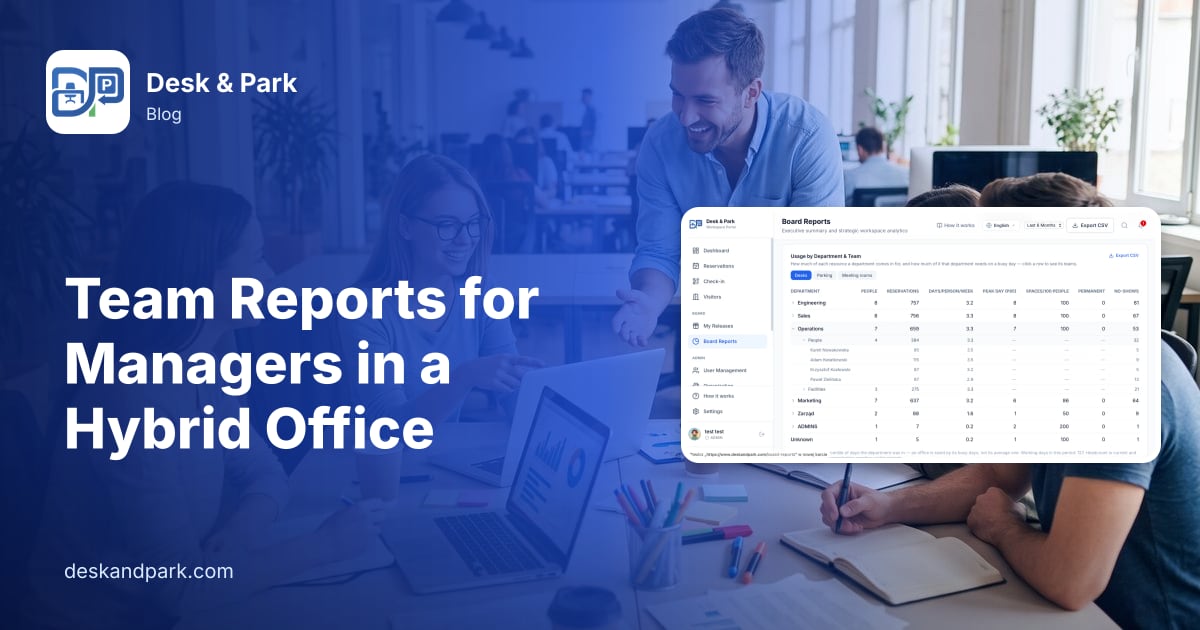
In Karolina's navigation a new item appears: Team Reports. It is the same page the board uses, with every figure narrowed by the server to her people. She picks a period, from the last 7 days up to the last year, and reads:
- Workspace and parking utilization. How much of the office her teams use. The capacity stays the whole office, so the number answers "what share of the office do my teams take", not a figure inflated by a shrunken denominator.
- Peak occupancy. How full the office was on the busiest single day of the period, and which day that was.
- Ghost rate. The share of her teams' bookings that were never checked into, i.e. desks held and not used, with a breakdown by floor.
- Monthly utilization trend. Whether attendance is growing, flat or fading.
- EV charging demand, if her people drive electric cars and the office has charger spots.
- Usage by Department & Team. Each of her departments with headcount, attended days per person per week and the peak, with a click to expand into teams. Tabs switch between desks, parking and meeting rooms.
- Presence Across the Week. A heatmap of the share of each department present on each weekday.
- Standing Bookings Nobody Attends. Recurring series in her scope, ranked by attendance, with those attended less than half the time counted.
Within ten minutes Karolina has an honest answer for the CFO. Two of her teams average close to two days a week, clustered on Tuesday and Thursday. The third averages under one day, has no visible peak, and the team breakdown shows the most no-shows of the three: people book and then do not come. That is a conversation for her team, not a capacity problem for the facilities department.
Who sees names
Aggregates are one thing, names another. Desk & Park separates the two with an organisation-wide setting called Who sees people by name in reports, with three levels:
| Level | Who can expand a team into the people in it |
|---|---|
| Nobody (default) | No one. Reports show aggregates only. |
| Board and administrators | The board and admins, across the organisation. |
| Board, administrators and managers | Additionally managers, for the people in their own scope only. |
The level is set by the Desk & Park platform operator at the organisation's request. Even at the most open level, a manager never sees people outside the departments and teams assigned to them.
For Karolina's company the level stays at Nobody. She sees that the third team has many no-shows, not who in that team is causing them. For most decisions a manager actually makes, that is enough, and it keeps the report from becoming an attendance-policing tool.
What else a manager can do
A manager is also an ordinary user. Karolina books desks and parking like everyone else, appears on the office map like everyone else (unless she opts out), and may hold a permanently assigned desk or parking spot. On days she is away, I'm away today releases it for colleagues, the same way it works for board members.
Practical tips
- Agree what the numbers are for before you show them. Team reports work best as a basis for a conversation about how the team uses the office, not as a scorecard.
- Fill in departments and teams carefully. The scope is only as accurate as those fields. A person with no department is in nobody's scope.
- Read peaks, not averages. An office is sized by its busy days. The peak and the weekday heatmap tell more than the average utilization.
- Look at the ghost rate before asking for more desks. If a third of bookings are never used, the shortage may not be real; see how auto-release frees office space.
- Pair reports with anchor days. When a team agrees on regular office days, a weekly series makes them stick; see Recurring Desk Bookings and Team Anchor Days.
Scope: what manager reports do not include
The manager role is an Enterprise feature. Managers do not see the AI recommendations that board and administrators can generate, and they do not see the board release programme or the plan's usage limits. Names in reports follow the organisation's level, which is off by default and changed only by the platform operator on request. Managers cannot change departments, teams or their own scope. The reports describe what happened in the chosen period; they do not forecast. For how the analytics are measured in general, see Measuring Real Office Occupancy, and for plans see pricing.
FAQ
Can a department head see office usage only for their own teams?
Yes, on the Enterprise plan. An administrator gives the person the Manager role and sets their reporting scope to whole departments or individual teams. The person then sees Team Reports with every figure narrowed by the server to the people in that scope.
Can managers see which employees did not show up?
Only if the organisation allows it. The setting Who sees people by name in reports is off by default, which means aggregates only. At the level Board, administrators and managers, a manager can expand a team into named people, but only within their own scope.
What happens if a manager has no reporting scope?
They see empty reports. Nothing from other departments is shown as a fallback. An administrator sets the scope in User Management under the menu next to the person's name.
Do managers see the AI recommendations for the board?
No. AI recommendations, the board release programme and the plan usage card are shown to the board and administrators only. Managers see the operational reports for their scope.
Can a manager still book a desk and keep a permanent spot?
Yes. A manager books desks, parking and rooms like any employee, and may hold a permanently assigned desk or parking spot that they release for the days they are away.
#DeskAndPark#ManagerReports#HybridOffice#Analytics#Privacy#Enterprise
Ask AI about this article
Get a summary or a second opinion: each button opens the assistant with a question about this article.