- meeting rooms
- kiosk
- check-in
- room booking
Meeting-Room Kiosk Tablets: What the Door Screen Does
A tablet by the meeting-room door shows today's bookings, whether the room is free and until when, and takes check-ins. Here is how it works.
Imagine Tomasz, a project lead in a 150-person office. At 9:58 he walks to the room called "Harbour" for his ten o'clock with a client. Through the glass he can see four colleagues from another team, laptops open, mid-discussion. They say they "just grabbed it because it looked free". He is fairly sure he booked it, but he would have to open his phone, find the booking, and show it to people who are already annoyed at being interrupted. Meanwhile, two doors down, someone else is standing in a corridor wondering whether the small room is free for the next half hour — and has no way to know without opening an app.
Both problems have the same root: the information about a room lives in an app, and the decision about the room is made at its door. A meeting-room kiosk puts the first where the second happens.
What the tablet shows
A kiosk in Desk & Park is a tablet mounted next to one meeting room, permanently showing that room's day. It is a web page — the tablet opens deskandpark.com/kiosk in its browser — so there is no app to install on it.
The screen is built to be read from a metre or two away:
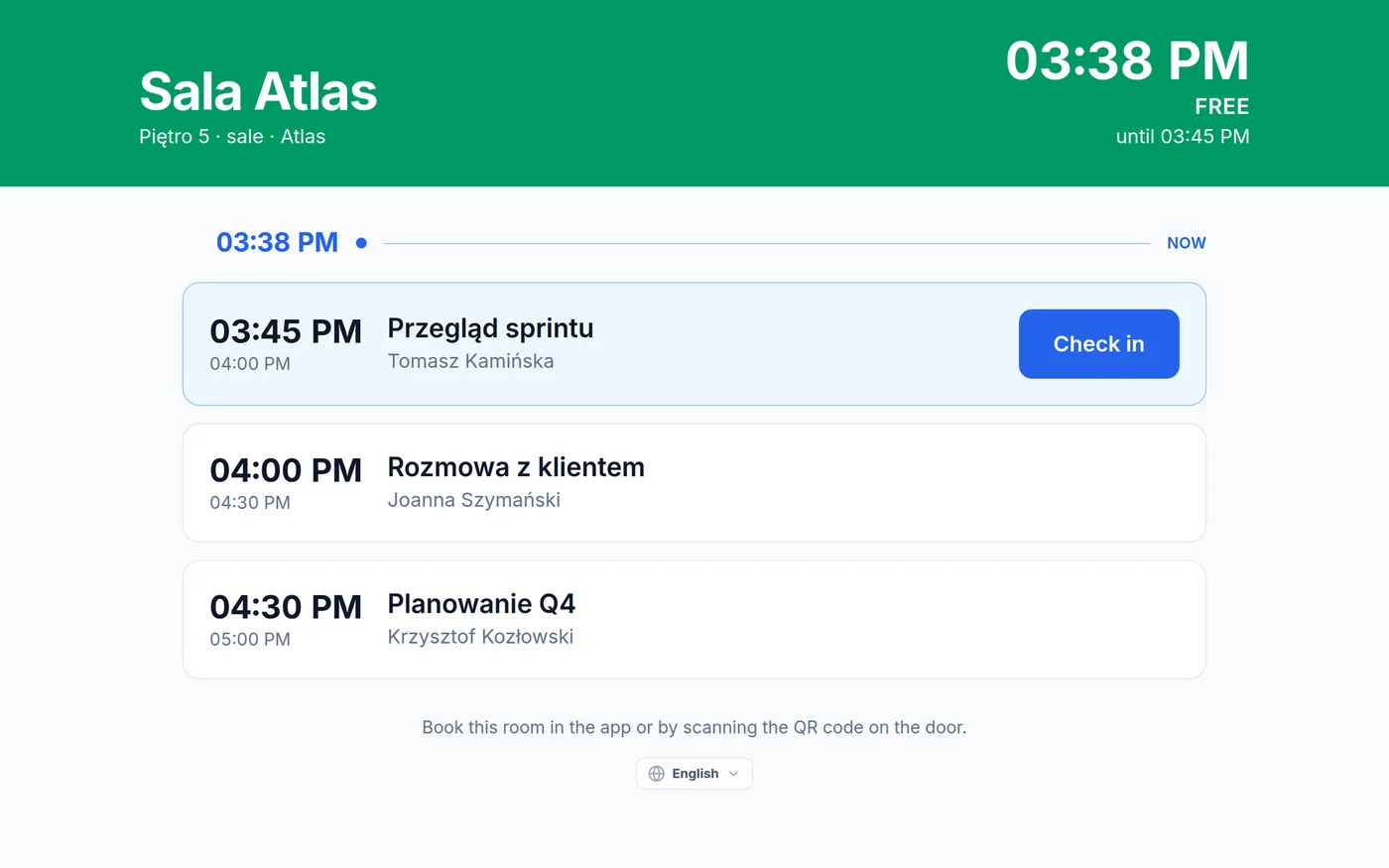
- A coloured header with the room's state. Green with Free, or red with In use, plus the follow-up question everyone at the door asks: until 14:00, or for the rest of the day. The room's name, floor and code are in the same header, together with the current time.
- Today's bookings for the room, in order, each with its title and the organiser's name. Names only — the screen on a corridor wall never displays e-mail addresses.
- A "now" marker in the list, so everything above it has started and everything below has not.
- Tidy history. Meetings that ended more than 30 minutes ago drop off the list, so the screen shows what is still relevant.
- Fresh data. The schedule is refreshed every 10 seconds, so a booking made or cancelled in the app shows up on the door almost immediately. If the network drops, a banner says so and the tablet keeps showing the last known schedule until the connection returns.
Back to Tomasz. With a tablet at the door, the conversation is short: the header is red, it says In use until 11:00, and the row under the "now" marker shows his meeting with his name on it. Nobody has to argue, and the person in the corridor two doors down can see at a glance that the small room is green and free until 10:30.
Check-in at the door
Each booking in the list gets a Check in button when its window opens: from 15 minutes before the meeting starts until the organisation's check-in deadline after the start. Tapping it confirms arrival for that booking on behalf of its organiser. Whoever walks in first can do it; the tablet does not ask who they are.
Why check in at all? It records that the meeting actually happened, which is the difference between a room that is booked and a room that is used. And if your organisation has switched on the optional release of rooms nobody checked in to (on every plan, off by default), the tablet is the most natural place for that check-in to happen; a room synced with Microsoft 365 or Google Workspace is then freed in that calendar too.
What it deliberately cannot do
A kiosk tablet cannot book. This is a design decision, not a missing feature. A wall tablet has no idea who is standing in front of it, so a booking made on it could not be attributed to anyone — and an unattributed booking is exactly what makes a room schedule untrustworthy. Bookings stay in the app, where there is an account behind each one. The footer of the screen says so: book this room in the app, or by scanning the QR code on the door.
For the same reason, guest bookings — seats an executive assistant holds for visitors from outside the company — appear on the tablet as an occupied slot labelled Guest booking, with no name and no check-in button. (More on those in guest bookings for board meetings.)
Setting up a tablet, step by step
- Open the kiosk list. As an administrator, go to Administration → Kiosks. It lists every meeting room in your organisation with the state of its tablet; the interesting rows are the rooms that have none yet.
- Generate a pairing code. Click Generate pairing code next to the room. You get six digits, shown once. The code works one time and expires after 15 minutes.
- Pair the tablet. On the tablet, open
deskandpark.com/kioskand type the six digits into the keypad. From that moment the tablet shows that room's day. It authenticates with its own device token, so no employee ever signs in on it, and nobody's account is left open on a wall. - Pick the language. The language is chosen on the tablet itself, once, when you mount it. A lobby in Kraków and one in Berlin can show different languages.
Afterwards the kiosk list tells you the state of every tablet with one badge: waiting to pair, paired, or not responding when a device has been silent for more than 24 hours — usually a tablet that lost Wi-Fi or ran out of power. You can unpair a tablet at any time; it returns to the pairing keypad on its next request, and the action is written to the audit log. If a meeting room is deleted or deactivated, its tablet is retired with it automatically, because a screen that shows one room's schedule has nothing left to show.
Practical tips
- Start with the rooms that cause arguments. The busiest rooms, the ones next to open-plan areas and the ones visitors use are where a door screen pays off first.
- Use the tablet's own lock-down mode. Most tablets can pin a single browser page and keep the screen awake. Turn that on so a passer-by cannot wander off to another site.
- Keep it powered. A wall tablet on battery will eventually go silent. The not responding badge tells you which one to check.
- Put a QR sticker on the door too. Since the tablet does not book, the room's QR code is the quickest way for someone standing there to make a booking from their phone.
- If you sync with Outlook or Google Calendar, meetings booked on the room from the calendar become Desk & Park bookings within minutes and appear on the tablet like any other booking.
Scope
The kiosk shows one room, for today. It does not book, extend or end meetings, does not show other rooms or the week ahead, and does not identify who taps Check in. It needs a tablet with a current browser and a network connection; mounting hardware is up to you. Kiosks are available on every plan. For booking rooms in the first place, see meeting-room booking.
FAQ
Can people book a meeting room on the tablet?
No, deliberately. The tablet does not know who is standing in front of it, so a booking made there could not be attributed to anyone. People book in the app or by scanning the room's QR code, and the tablet shows the new booking within seconds.
Does anyone have to sign in on the tablet?
No. The tablet is paired once with a six-digit, one-time code that an administrator generates; the code expires after 15 minutes. After pairing, the device uses its own token, and no employee account is ever signed in on it.
When does the Check in button appear?
From 15 minutes before a meeting starts until your organisation's check-in deadline after the start. Tapping it confirms arrival on behalf of the meeting's organiser. Guest bookings have no check-in and show no button.
What happens if the tablet loses its connection?
A banner says there is no connection and the screen keeps showing the last known schedule. When the connection returns, it refreshes. If a tablet stays silent for more than 24 hours, the kiosk list in the admin panel marks it as not responding.
Which plan includes kiosk tablets?
Every plan, including the free Start plan. You need one tablet per meeting room you want to equip.
#DeskAndPark#MeetingRooms#Kiosk#CheckIn#RoomBooking
Ask AI about this article
Get a summary or a second opinion: each button opens the assistant with a question about this article.