- slack
- microsoft teams
- notifications
- integrations
Booking Notifications in Slack and Microsoft Teams
Post desk, parking and room bookings, cancellations, no-show releases and a morning digest to a Slack or Teams channel. Setup in minutes, on every plan.
Imagine Sam, who looks after facilities for a 90-person office on two floors. It is 8:40 on a Monday. A colleague messages Sam directly: is there any desk left today? Five minutes later reception calls because a visitor is waiting and the host is in a meeting with headphones on. At 10:15 someone mentions that the parking spot by the entrance has been empty all morning, although the app said it was booked.
Sam's team already lives in a chat channel. Everything Sam needs to know is happening in Desk & Park, but nobody looks at an admin dashboard at 8:40. So the information should come to where the team already is.
What lands in the channel
Desk & Park can post office activity to a Slack channel, a Microsoft Teams channel, or both. An administrator chooses which events are posted:
- New bookings, for example "Anna Kowalska booked desk D-301 for 2026-10-14." A weekly series is posted once, with the number of dates, not once per date.
- Cancellations: "Anna Kowalska's booking of desk D-301 for 2026-10-14 was cancelled."
- No-show releases: "…desk D-301 for 2026-10-14 was released — nobody checked in." These follow the cancellation switch.
- Visitor arrivals: "Jan Nowak has arrived — host: Anna Kowalska."
- An opt-in daily digest on weekday mornings, titled "Desk & Park — today": "34 booking(s) today, 3 cancelled/released." Counts only, no names.
The same events cover desks, parking spots and meeting rooms.
How Sam's Monday changes
With the integration switched on, Sam's Monday looks different, step by step.
06:30 UTC, before anyone arrives. The digest lands in the channel: how many bookings today, how many were cancelled or released. Sam knows whether it is a quiet day or a full one before opening the laptop.
08:40. The colleague looking for a desk does not need to ask Sam. A few minutes earlier, the channel showed that a desk on the second floor was cancelled for today. They book it themselves.
09:15. Reception registers the visitor's arrival. The post "has arrived — host: …" appears in the channel the team follows, so a teammate taps the host on the shoulder instead of reception phoning around.
10:00. The parking spot by the entrance was booked but nobody checked in. Desk & Park releases it automatically as a no-show and posts it. The colleague who drove in without a booking sees the post and takes the spot. (How the release itself works is described in ghost bookings and automatic release.)
Nothing here required a new habit. People read the channel they were already reading.
Setting it up
Everything is done by an administrator on the Slack & Teams card in the organisation settings.
Slack
- In Slack, create an Incoming Webhook for the channel you want to post to and copy its URL.
- Paste it into Slack webhook URL in Desk & Park.
Microsoft Teams
- In Teams, open the Workflows app, choose Create and the template "Send webhook alerts to a channel", pick the channel and copy the URL it gives you.
- Paste it into Microsoft Teams webhook URL in Desk & Park.
Teams posts arrive as an Adaptive Card sent by Microsoft's Workflows bot. Older Office 365 connector URLs are refused: Microsoft retired those connectors, and a URL that can no longer deliver anything would only fail silently. If such a URL was saved earlier, the card says so and asks for a new one.
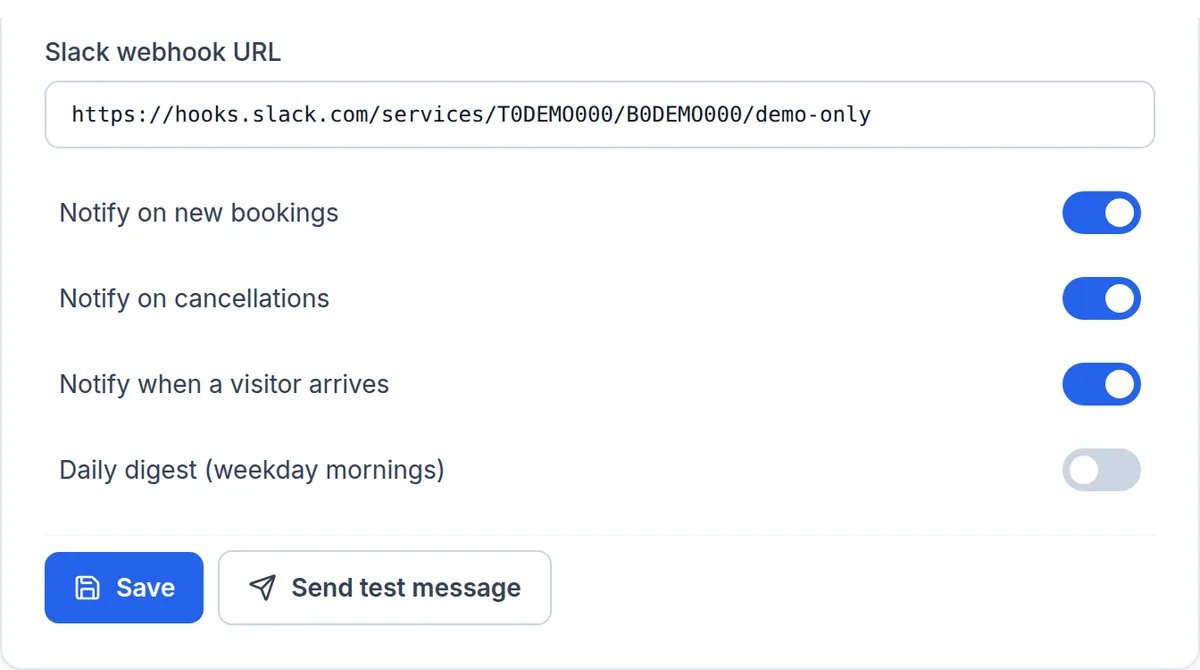
Then choose the events and test. Switch on what you want (Notify on new bookings, Notify on cancellations, Notify when a visitor arrives, Daily digest (weekday mornings)), save, and click Send test message. The card reports for each channel whether the test was delivered or rejected, so a typo in the URL shows up immediately rather than next week.
Posts are delivered through an outbox with retries. If Slack or Teams is briefly unavailable, Desk & Park tries again, and a slow or broken webhook never slows down or blocks a booking.
Practical tips
- Pick the channel by audience. Booking posts name the person and the space. A team or office channel where people already see who is in is a good fit; a company-wide channel with hundreds of members may not be. Guest bookings made for visitors are never posted.
- Start with the digest and releases. For many offices the morning digest plus no-show releases is the right signal level. Every single booking can be a lot of messages in a busy office.
- Decide what the channel is for. The switches apply to every connected channel, so all of them receive the same events. If visitor arrivals belong with reception and hosts while booking activity belongs with the office team, choose the channel both groups follow, or leave one of the event types off.
- Re-test after changing the workflow. If someone rebuilds the Teams workflow or removes the Slack app, the old URL stops working. One click on Send test message confirms the channel still receives posts.
Scope: what it does not do
Slack and Teams notifications are available on every plan, including the free Start plan; see pricing. The integration is one-way: Desk & Park posts into the channel. You cannot book, cancel or check in from Slack or Teams; there is no bot to talk to, no slash command and no Teams app. Each organisation has one Slack URL and one Teams URL, so posts go to one channel per provider, and the channel texts are in English. The morning digest contains counts only, never names.
If you also want room bookings to stay in sync with Outlook, that is a separate feature: room calendar sync with Microsoft 365 and Google Workspace. Your own bookings can also reach your personal calendar through e-mail invitations; see desk bookings in your Outlook calendar.
FAQ
Which events can Desk & Park post to Slack or Teams?
New bookings, cancellations, no-show releases and visitor arrivals, each controlled by a switch, plus an optional weekday-morning digest with counts of today's bookings and of cancelled or released ones. No-show releases follow the cancellation switch.
How do I get a Microsoft Teams webhook URL?
In Teams, open the Workflows app, create a flow from the template "Send webhook alerts to a channel", choose the channel and copy the URL. Paste it into the Microsoft Teams field in Desk & Park and click Send test message. URLs of the retired Office 365 connectors are not accepted.
Can employees book a desk from Slack or Teams?
No. The integration only posts into a channel. Booking, cancelling and check-in happen in Desk & Park.
Will a broken webhook slow down bookings?
No. Posts go through an outbox and are retried if Slack or Teams does not answer; the booking itself never waits for the channel.
Do the posts show employees' names?
Booking, cancellation and release posts name the person and the space, so choose a channel whose members may see that. Guest bookings are never posted, and the daily digest contains counts only.
#DeskAndPark#Slack#MicrosoftTeams#Notifications#Integrations
Ask AI about this article
Get a summary or a second opinion: each button opens the assistant with a question about this article.