- security
- single sign-on
- passkeys
- two-factor authentication
- it admin
SSO, Passkeys and Two-Factor Sign-In for Desk Booking
How sign-in works in Desk & Park: single sign-on via OpenID Connect, passkeys, authenticator-app two-factor and session control, on every plan.
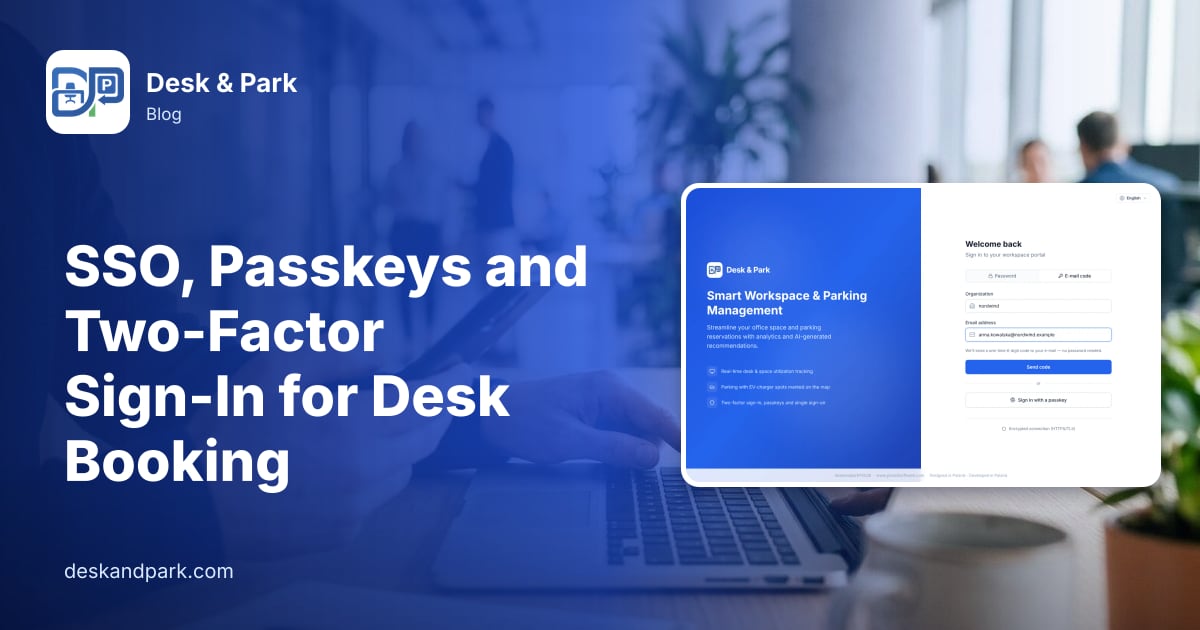
Imagine Kasia, the only IT person at a 180-person company that has just moved to a hybrid office. It is Monday, 8:40. Three tickets are already waiting: one colleague forgot the password to the desk booking tool, another cannot find the e-mail with her sign-in code, and a team lead asks whether the contractor who left on Friday can still book a parking spot. Kasia has spent two years putting every application behind the company's identity provider. The desk booking tool is the one that still has its own passwords.
Here is how sign-in works in Desk & Park, what Kasia would set up, and the one place where the product deliberately breaks the "everything through SSO" rule. All of it is available on every plan, including the free Start plan.
Step 1: connect the identity provider (SSO via OpenID Connect)
Desk & Park supports single sign-on through OpenID Connect, the standard spoken by Microsoft Entra ID, Google Workspace, Okta and most other identity providers. The flow is authorization code with PKCE, the variant recommended for web applications.
Kasia opens Organization Settings → Single sign-on (SSO) and fills in four fields:
- Issuer URL: for Google
https://accounts.google.com, for Entrahttps://login.microsoftonline.com/<tenant-id>/v2.0, or the issuer of any other OIDC provider. - Client ID and Client secret from the app registration she creates in her provider's console. The secret is stored encrypted and is never shown again; to change it she types a new one.
- Allowed e-mail domain (optional). If set, only addresses from that domain can sign in with SSO, so a personal account that happens to exist in the provider does not get in.
- The card shows the Redirect URI to paste back into the app registration.
She ticks Enable SSO sign-in and saves. The sign-in page now shows Sign in with SSO, and the colleague who forgot her password uses the same Microsoft or Google account as for e-mail. One organisation connects one provider.
What SSO does not do on its own: create accounts
The first SSO sign-in does not create an account. If someone authenticates successfully at the provider but has no Desk & Park account, they are sent back to the sign-in page with a message to ask their admin for an invitation. Accounts are created by an admin: invited one by one, imported from a list, or provisioned automatically from Entra ID or Okta over SCIM, which we describe in SCIM provisioning and offboarding.
This matters for Kasia's third ticket: blocking someone at the provider is only half of offboarding. The other half is deactivating the Desk & Park account and ending its sessions, which SCIM does when the person is disabled in the directory.
Who checks the second factor on an SSO login
When someone signs in with SSO, the identity provider has already authenticated them, so Desk & Park does not add its own code step on top. The second factor is whatever your provider requires. If your Entra or Okta policy asks for MFA, that is the MFA your employees go through.
Step 2: the deliberate exception, administrators
Here is the part that surprises some IT teams: administrator accounts cannot sign in with SSO. That is on purpose.
An SSO login matches the person by e-mail address. If an identity provider is ever misconfigured or compromised, whoever controls it could present an admin's e-mail address and walk into the admin console of the booking system. To keep that door closed, admins use the platform's own factors: a password, a passkey or an e-mail code, followed by their authenticator-app code once they have turned two-factor on.
So the practical rule for Kasia: every admin account should turn on two-factor authentication in Settings → Security, starting with her own. The product does not force it, which is why it belongs on her checklist.
Step 3: passkeys for people who hate passwords
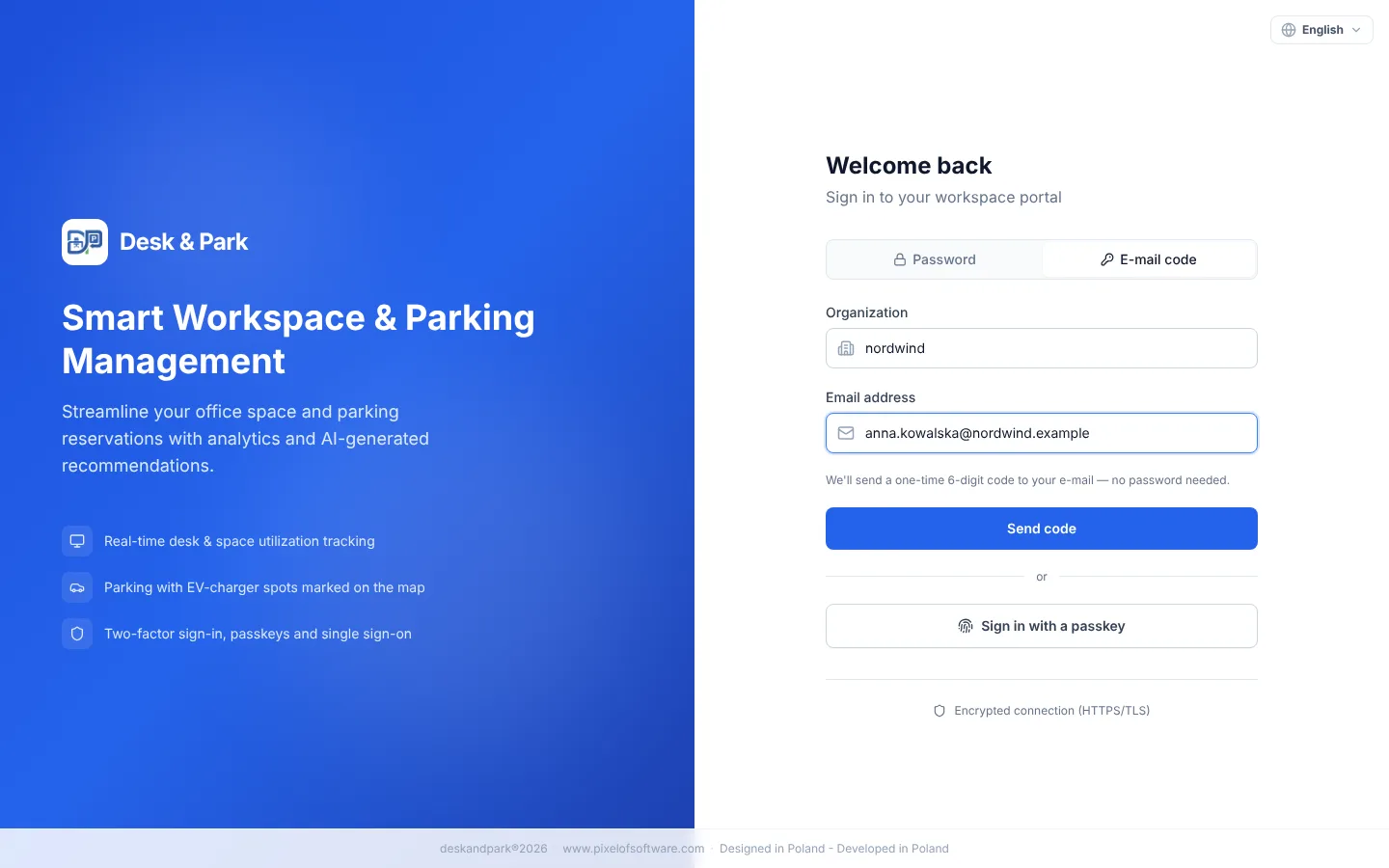
A passkey (WebAuthn) lets someone sign in with a fingerprint, face recognition or the device PIN, with no password to remember or phish. Each user adds one for themselves in Settings → Security → Passkeys ("Add a passkey"), optionally naming it ("MacBook", "iPhone"). The list shows when each passkey was added and last used, and any of them can be removed.
A detail that matters for security reviews: a passkey used with user verification (the fingerprint, face or PIN check) counts as two factors on its own and completes the sign-in. A passkey used without user verification is treated as possession only, so an account with two-factor turned on still gets the code step afterwards.
Step 4: two-factor with an authenticator app
Two-factor in Desk & Park is TOTP: the six-digit code from an authenticator app. Each user turns it on in Settings → Security; from then on, every sign-in by password, e-mail code or a passkey without user verification asks for the code.
The user also receives one-time recovery codes: if the phone is lost, one code gets them in and is then used up. Codes can be regenerated, and turning two-factor on or off is recorded in the security log.
Step 5: sessions you can see and end
Under Settings → Security → Active Sessions every user sees where they are signed in (browser, operating system, IP address, start time) and can revoke any session or Log out everywhere.
Behind the scenes, two more mechanisms do quiet work:
- Refresh-token rotation. Every time a session is renewed, the old token is replaced. If an already-used token is presented again, which is a sign that it was copied, the whole session is ended.
- Lockout after repeated failures. After repeated failed attempts, further attempts are blocked for a while, and the lockout appears in the security log.
Practical tips for rolling it out
- Start with the admins. Before announcing SSO, make sure every admin has two-factor on and a passkey added. They will not be able to use SSO, so their own sign-in has to be strong.
- Set the allowed e-mail domain if your identity provider also holds guest or personal accounts.
- Decide how accounts get created. For a small office, invitations are enough. For anything bigger, connect SCIM so that joiners and leavers flow from the directory.
- Keep the announcement short. "Use Sign in with SSO, the same account as your e-mail" is enough.
- Read the security feed now and then. Sign-ins, failures, lockouts and two-factor changes appear in the admin audit log; we describe it in audit log and support access.
Scope: what this does not do
To keep expectations honest: single sign-on is OpenID Connect only, so there is no SAML. There is no organisation-wide policy that forces two-factor on every user, no configurable session timeout, no IP allowlist and no "SSO only" mode that switches off the other sign-in methods. Two-factor is each user's own choice, which is why the checklist above starts with the admins. Where the data itself is kept is a separate topic, covered in why your workplace data needs an isolated database.
Plans and limits are on the pricing page; setup of a whole office is described in the onboarding guide.
FAQ
Which identity providers work with Desk & Park SSO?
Any provider that supports OpenID Connect, including Microsoft Entra ID, Google Workspace and Okta. One organisation connects one provider. SAML is not supported.
Does the first SSO sign-in create an account automatically?
No. The account has to exist first: an admin invites the person, imports a list, or provisions accounts over SCIM from Entra ID or Okta. Someone without an account is sent back to the sign-in page with a message to ask their admin.
Why can't administrators sign in with SSO?
Because an SSO login matches the account by e-mail, and a misconfigured or compromised identity provider must not be able to open the admin console. Admins sign in with a password, a passkey or an e-mail code, followed by their authenticator-app code once two-factor is on.
Can we force two-factor authentication for everyone?
Not in the product. Two-factor is turned on by each user in Settings → Security. Employees who sign in with SSO go through whatever MFA your identity provider requires; for admins, turning two-factor on should be part of your setup checklist.
Is SSO included in the free plan?
Yes. SSO, passkeys, two-factor and the active-sessions list are available on every plan, including Start.
#DeskAndPark#Security#SingleSignOn#Passkeys#TwoFactorAuthentication#ItAdmin
Ask AI about this article
Get a summary or a second opinion: each button opens the assistant with a question about this article.