- hybrid office
- desk booking
- office presence
- privacy
Who Is in the Office Today? Check Before You Commute
See who has booked a desk or a parking spot on a given day, grouped by team on the floor map, with privacy controls enforced on the server.
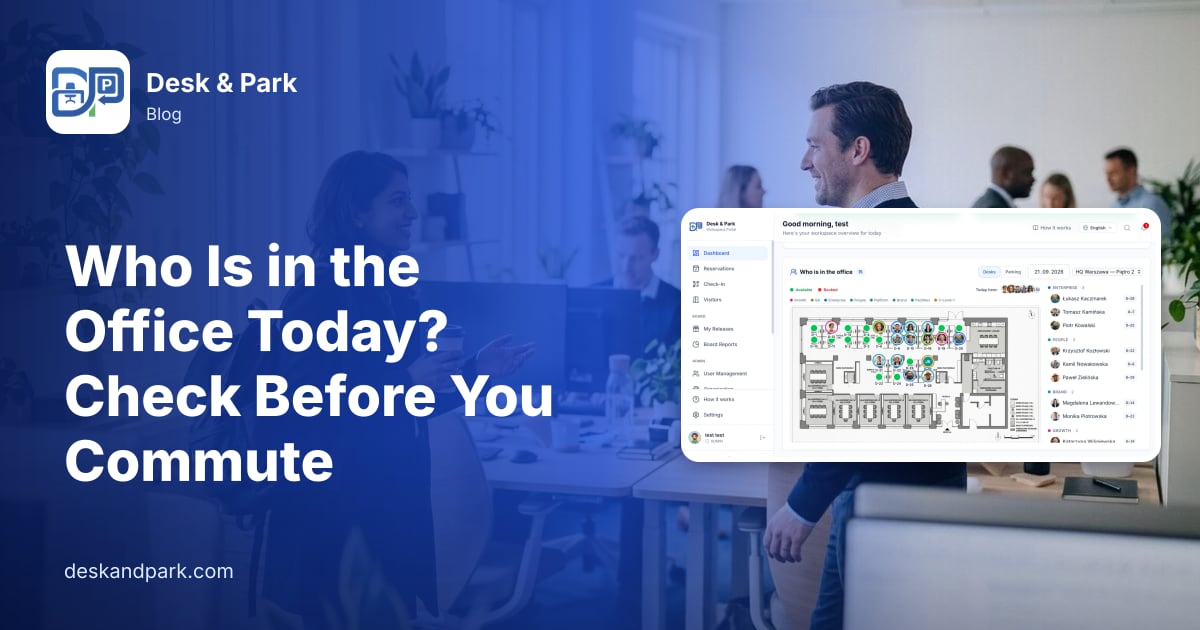
Imagine Lena, a product designer at a 150-person company with a hybrid policy. It is Monday evening and she wants to spend Tuesday working through a prototype with two engineers from her squad. She posts "anyone in tomorrow?" in the team chat. One person answers with a thumbs-up, one says "probably", and the third reply arrives on Tuesday at 10:40, when Lena is already sitting alone on the fourth floor.
Nothing about this is dramatic. It is just the small, repeated cost of a hybrid office: people decide whether to commute based on who else will be there, and the answer lives in a dozen chat threads. Desk & Park answers that question with data the office already has, the bookings, and shows it on the same map people use to book.

The question, answered on the dashboard
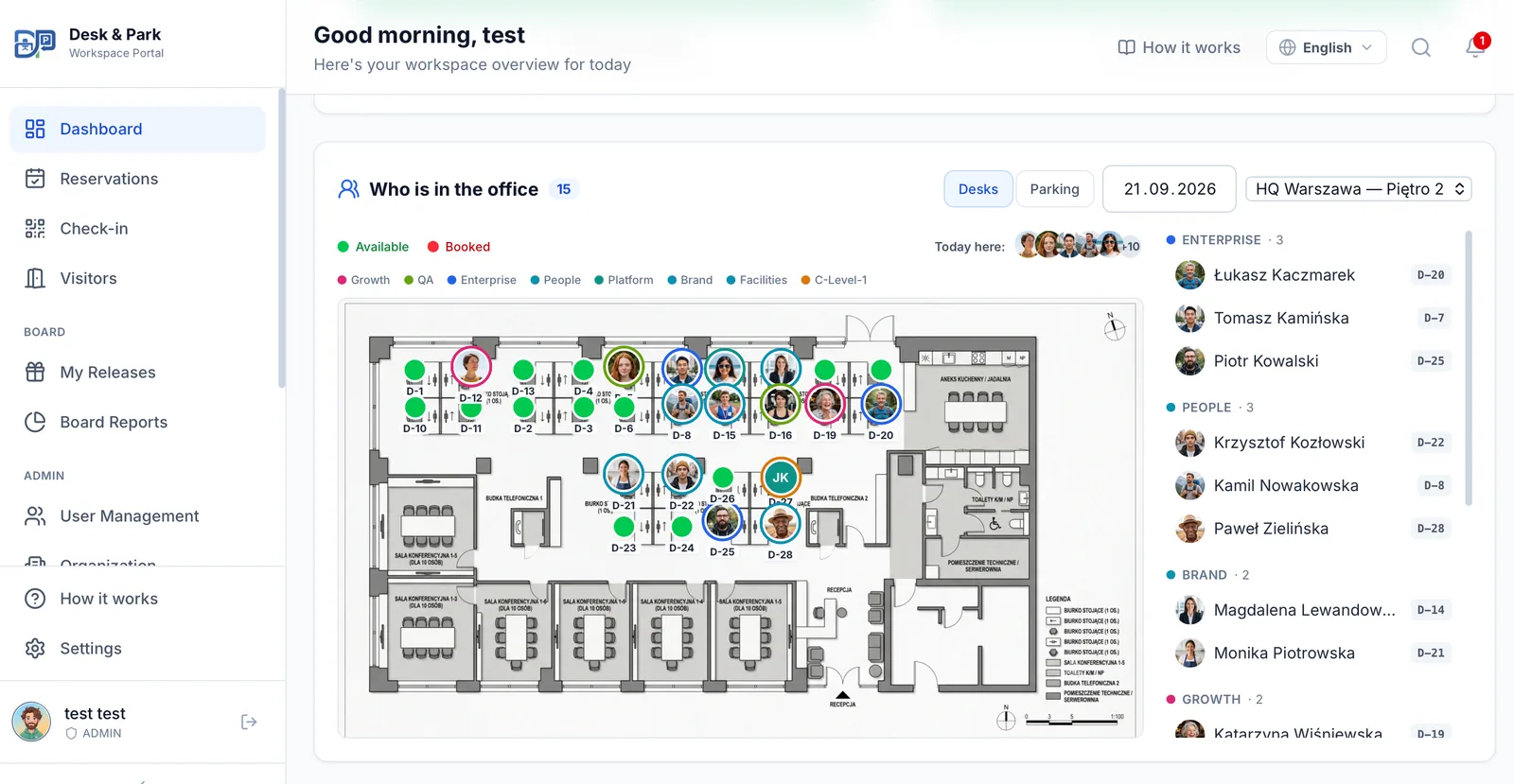
The home dashboard has a panel called Who is in the office. Here is what Lena does with it on Monday evening.
- She picks the day. The panel shares its date with the agenda above it, so clicking Tomorrow in her agenda moves the panel to Tuesday too. A date field lets her look further ahead.
- She picks the floor. A drop-down lists every floor of every location, for example "HQ — Floor 4". If the company also has parking maps, a Desks | Parking toggle switches the same panel to a parking area and answers "who is parking on Tuesday".
- She reads the map. Each booked desk shows the person's photo, or their initials if there is no photo, ringed in their team's colour. A small green dot means that person has already checked in with the QR code, which is useful on the day itself.
- She reads the roster. Next to the map, everyone who booked is listed by team, the biggest groups first, with the desk code beside each name. If a person has no team set, their department is used instead.
- She connects the two. Clicking a name highlights that person's desk on the map, and clicking a pin highlights the name. On a busy floor this is how you find one colleague among forty faces.
In Lena's case the roster shows that one of her engineers has booked a desk for Tuesday and the other has not. That is enough to make a decision: she messages the second engineer directly, they agree on Wednesday instead, and nobody commutes for nothing.
The same picture while booking
The information is not only on the dashboard. When anyone opens the booking map to reserve a desk, a small row above the map shows who is already booked there on that day: the first few faces as a facepile with a "+N" for the rest, and a legend of the teams present with their colours. Lena can see that her squad's colour is clustered near the windows and choose a free desk in that part of the floor herself. The choice is hers; the map just makes the situation visible.
If you want a deeper look at why booking on a map works better than booking from a list, we wrote about it in Why Visual Booking Is the Future of Hybrid Offices. The booking side is described on the desk booking page.
Privacy is a server rule, not a display setting
Showing names on a map is only acceptable if people can say no, and if "no" really means no. In Desk & Park the decision is made on the server, before any data reaches the browser.
- Each person can opt out. In Settings → Profile there is a switch called Show me on the office map. When it is off, that person's desk appears as an anonymous taken pin, with no name and no photo.
- The organisation can switch it off entirely. The Show who booked on the map setting can be turned off for the whole organisation; it is switched by the Desk & Park platform operator at the organisation's request. The whole map then shows anonymous taken pins only.
- Anonymous means anonymous in the data. An anonymous pin carries no name in the response the server sends. There is nothing hidden in the page for a curious person to dig out with developer tools.
- Guest bookings are always anonymous, whatever the settings, so a seat held for a visitor never shows the name of the assistant who booked it.
- Permanent desks are not presence. A person with a permanently assigned desk who has not released it for the day is not listed, because holding a desk is not the same as coming in.
The empty state is worded carefully too. If nobody visible has booked yet, the panel says that there are no reservations with a visible person for that day. It does not claim the floor is empty, because people who opted out may still be coming.
Practical tips for workplace teams
- Fill in departments and teams. The colours and the roster grouping come from the department and team fields on each user. Without them, everyone ends up in one "No team" group and the map loses most of its meaning. Admins set the fields in user management, or have departments synced from the identity provider through SCIM.
- Encourage profile photos. Initials work, but faces are recognised faster than two letters, especially on a crowded floor.
- Explain the opt-out on day one. Tell people where the switch is before they ask. Trust in the feature depends on knowing it can be turned off.
- Make booking the habit, not the chat message. The panel is only as good as the bookings behind it. When a team agrees on regular office days, a recurring booking keeps the picture accurate for weeks; see Recurring Desk Bookings and Team Anchor Days.
- Use check-in on the day. The green dot tells you who has actually arrived, not just who planned to. QR check-in also releases desks that were booked and never used; see how auto-release frees office space.
Scope: what this feature does not do
To be clear about the limits: the panel shows bookings, not people's locations. It does not track phones or badges, and the green dot only reflects a QR check-in. There is no search box for finding a colleague by name, no automatic "seat me next to my team", no team zones or neighbourhoods, and desks are not assigned to teams. The app also does not suggest which days you should come in. It shows who has booked, and people decide. The panel is available on every plan, including the free Start plan; see pricing.
FAQ
Can I see who is in the office on a specific day?
Yes. The Who is in the office panel on the dashboard lets you pick any day and any floor, or a parking area. It shows booked desks on the map with each person's photo or initials and lists everyone by team next to the map.
Can employees hide themselves from the office map?
Yes. Each person can turn off Show me on the office map in Settings → Profile, and names can be switched off for the whole organisation (the platform operator does it at the organisation's request). In both cases the server sends an anonymous pin without any name, so the information is not just hidden in the browser.
Does the green dot mean the person is physically at their desk?
It means the booking has been checked in with the QR code on that day. Desk & Park does not track locations, phones or badges, so the dot is a check-in status, not live presence.
Can I search for a colleague or book a desk next to my team automatically?
No. There is no colleague search and no automatic seating next to teammates. You can see team colours and names on the map and pick a free desk near your team yourself.
Is this available on the free plan?
Yes. The Who is in the office panel and the team colours on the booking map are part of every plan, including Start, which is free for up to 10 bookable objects.
#DeskAndPark#HybridOffice#DeskBooking#OfficePresence#Privacy
Ask AI about this article
Get a summary or a second opinion: each button opens the assistant with a question about this article.