- ai
- board reports
- analytics
- workplace strategy
AI Workplace Recommendations for the Board, Explained
How Desk & Park turns a week of office data into 3–6 AI recommendations: what the model sees, what it never sees, and how the board decides on each one.
Imagine Tomasz, head of workplace at a company with offices in three cities. It is Monday morning and the board meets on Thursday. The chair has asked a simple question: "What should we change about the office?"
Tomasz has data. Board Reports shows utilisation, the ghost rate per floor, parking, EV charger demand and a table of departments. What he does not have is time to turn twelve charts into three proposals with numbers behind them. And he knows that whatever he brings, someone at the table will ask "how do you know?".
This is the job the Strategic Recommendations section in Desk & Park is built for: a first draft of what deserves the board's attention, written from aggregates, with every recommendation open to checking against the reports on the same page.
Step 1: generate a report when you need one
Tomasz is an admin, so in Board Reports he sees a Generate report button on the Strategic Recommendations card. He clicks it. Nothing runs on a schedule: a report exists only because an admin asked for one, and by default it covers the previous full week, Monday to Sunday.
If there is no utilisation data for that week (a new account, or a week the office was closed), the app says so and generates nothing, instead of inventing a story from an empty week.
Step 2: know what the model sees
Before Tomasz shows any of this to the board, he wants to know what went into it. The input is aggregates only:
- Per location: utilisation, ghost rate (bookings never checked into), parking, EV charger use, board members' released spaces, seats held for guests, floors under 30 % utilisation and weekday patterns.
- Per department and team: headcount, how many people were active, days in the office per person per week, no-shows, and for departments the P95 peak day and the sharing ratio.
- A four-week trend per department and team, calculated by Desk & Park in code before anything is sent, so "rising" and "falling" mean the same thing in every recommendation and a single weak week is not called a decline.
No employee is named anywhere in that input: no user IDs, no first or last names, no per-person rows. What does go are the names of places and organisational units (locations, floors, departments, teams), because a recommendation that says "Location 1, Group B" is not something anyone can act on. The recommendations are produced by a large language model from that input.
Step 3: read the cards
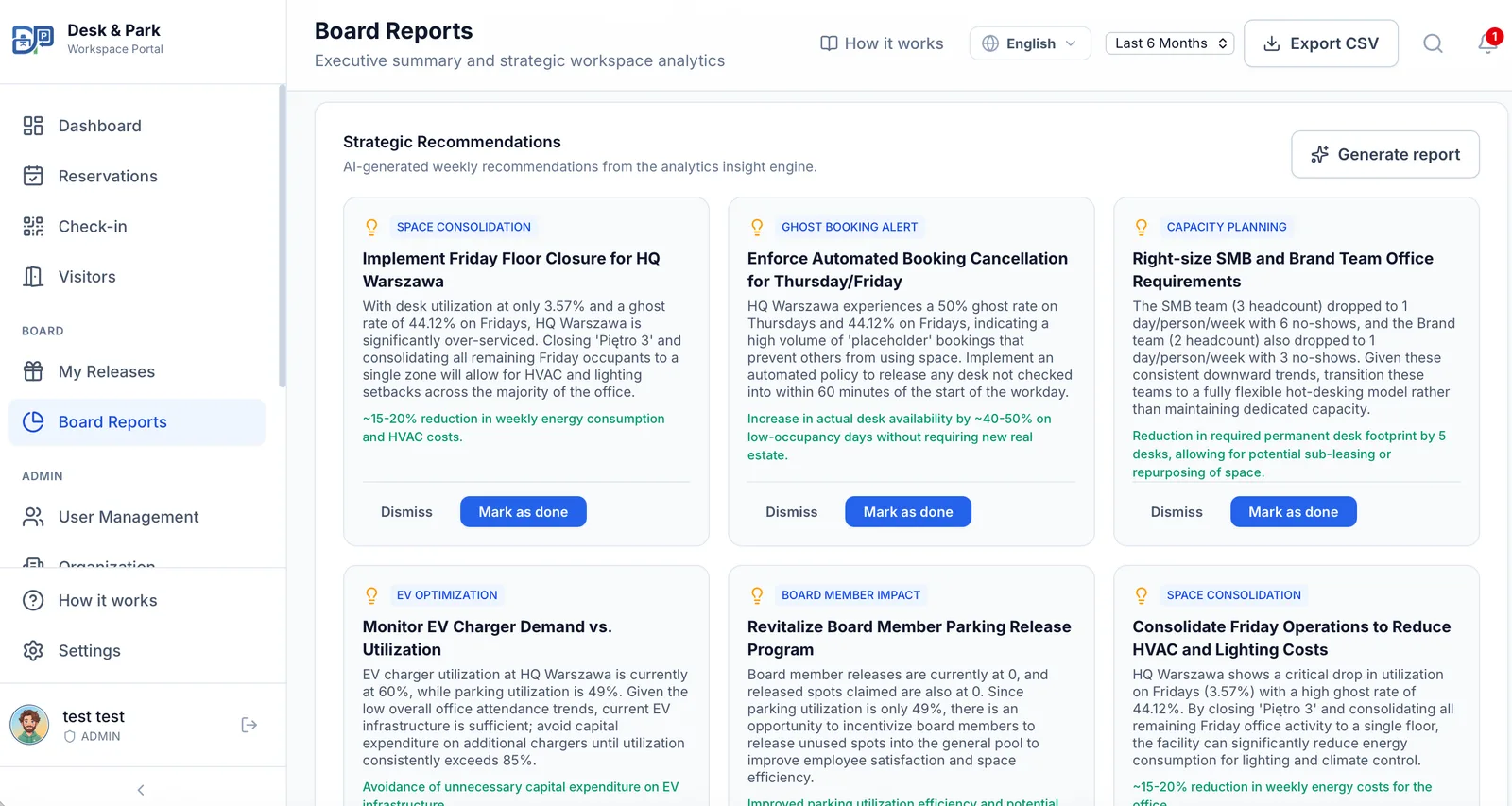
A report holds three to six recommendations. Each card shows:
- a category: cost saving, space consolidation, EV optimisation, ghost booking alert, board member impact, ESG or capacity planning;
- a title and a short body that cites the figures it is based on;
- an impact estimate.
Here is an invented example of what a card could say:
Space consolidation. Floor 4 in the Warsaw office averaged 22 % desk utilisation, with Fridays lowest. Consider closing Floor 4 on Fridays and moving the few Friday bookings to Floor 3. Impact estimate: lower heating and lighting use on Fridays.
The impact estimate needs the most care. It is written by the model, not measured by Desk & Park. The app does not calculate costs, savings or energy use. Treat the estimate as a hypothesis to test, and never put it on a board slide as a saving that has happened.
Step 4: verify against the reports
This is the step that makes a recommendation usable. Everything a card cites comes from figures that are on the same page, so Tomasz checks them before he forwards anything:
- A floor named as under-used: does Usage by Floor show the same, and is its ghost rate rising against the previous period?
- A department said to need fewer desks: what do its Peak day (P95) and Spaces/100 people say in the department table, and over a longer period than one week?
- A note about EV chargers: what does the EV Charging Demand figure show over a month, not just a week?
One week is a small sample. When a recommendation matters, Tomasz widens the reporting period in the same reports and checks whether the pattern holds.
Step 5: triage, one card at a time
Every recommendation has two buttons, and they record a decision about that card only:
- Dismiss: the board does not agree, or it does not apply.
- Mark as done: someone dealt with it. The button records that; it does not go and carry anything out.
Decided cards move into a resolved list with a Restore button, so a click made by mistake costs nothing. Admins and board members can triage; generating stays with admins. Managers, who see reports for their own teams on the Enterprise plan, do not see the AI recommendations at all.
Every decision is written to the organisation's audit log with who made it and what changed, so "who dismissed the parking recommendation?" has an answer three months later.
Practical tips
- Generate after a normal week. A week with a holiday or a company offsite produces recommendations about the holiday.
- Put the cards next to the charts. Show the board the recommendation together with the figure it cites; the discussion is shorter when the number is on the slide.
- Rewrite the impact as a question. "Could closing Floor 4 on Fridays save energy? Facilities will check the meter readings for a month" is honest; "we will save X" is not.
- Dismiss freely. A dismissed card is a decision on record, which is worth more than a list nobody cleans up.
- Fix data quality first. Recommendations about departments are only as good as the department field on each user. See measuring real office occupancy for what the underlying numbers mean.
Scope: what this feature does not do
It does not run on a schedule, it does not act on anything by itself and it does not forecast. Impact estimates are model-written estimates, not measured savings, and Desk & Park does no cost or energy calculation of its own. The model sees aggregates, never named employees. The recommendations are a starting point for a human decision, and the board makes that decision.
FAQ
Are employee names sent to the AI?
No. The model receives aggregates only: counts, rates and percentages per location, floor, department and team. No user IDs, names or per-person rows are sent. Names of locations, floors, departments and teams are included so that recommendations can be acted on.
How often are recommendations generated?
Only when an admin clicks Generate report. There is no schedule. By default the report covers the previous full week, Monday to Sunday.
Can we trust the impact estimate?
Treat it as a hypothesis. The impact estimate is written by the language model from the aggregates; Desk & Park does not measure savings or calculate costs. Verify the figures the recommendation cites in the reports on the same page before acting.
Who can see and decide on recommendations?
Admins and board members see them and can dismiss, mark as done or restore each one, and every decision is recorded in the audit log. Only admins can generate a report. Managers do not see AI recommendations.
What does "Mark as done" actually do?
It records that somebody dealt with the recommendation and moves the card to the resolved list. It does not change any setting, booking or floor in Desk & Park.
#DeskAndPark#Ai#BoardReports#Analytics#WorkplaceStrategy
Ask AI about this article
Get a summary or a second opinion: each button opens the assistant with a question about this article.