- privacy
- gdpr
- employee monitoring
- hybrid office
Horizontal Transparency, Vertical Privacy
Colleagues see who will be in the office; leadership sees only aggregate data. Desk & Park's privacy principle and a template for your staff.
A hybrid office asks two different questions about presence. An employee asks which of their people will be in tomorrow, and leadership asks whether the hybrid policy is working. The first question needs visibility among colleagues; the second needs nothing more than aggregate data about departments and weekdays. Desk & Park keeps these two answers apart, and we call that principle "horizontal transparency, vertical privacy."
We measure spaces and team collaboration, not people's attendance. Below we describe exactly what colleagues see, what leadership sees, what the app does not do at all, and how to introduce a presence view at your company without anyone feeling watched.
Horizontal transparency: what colleagues see
Horizontal means between people at the same level who want to arrange to work together.
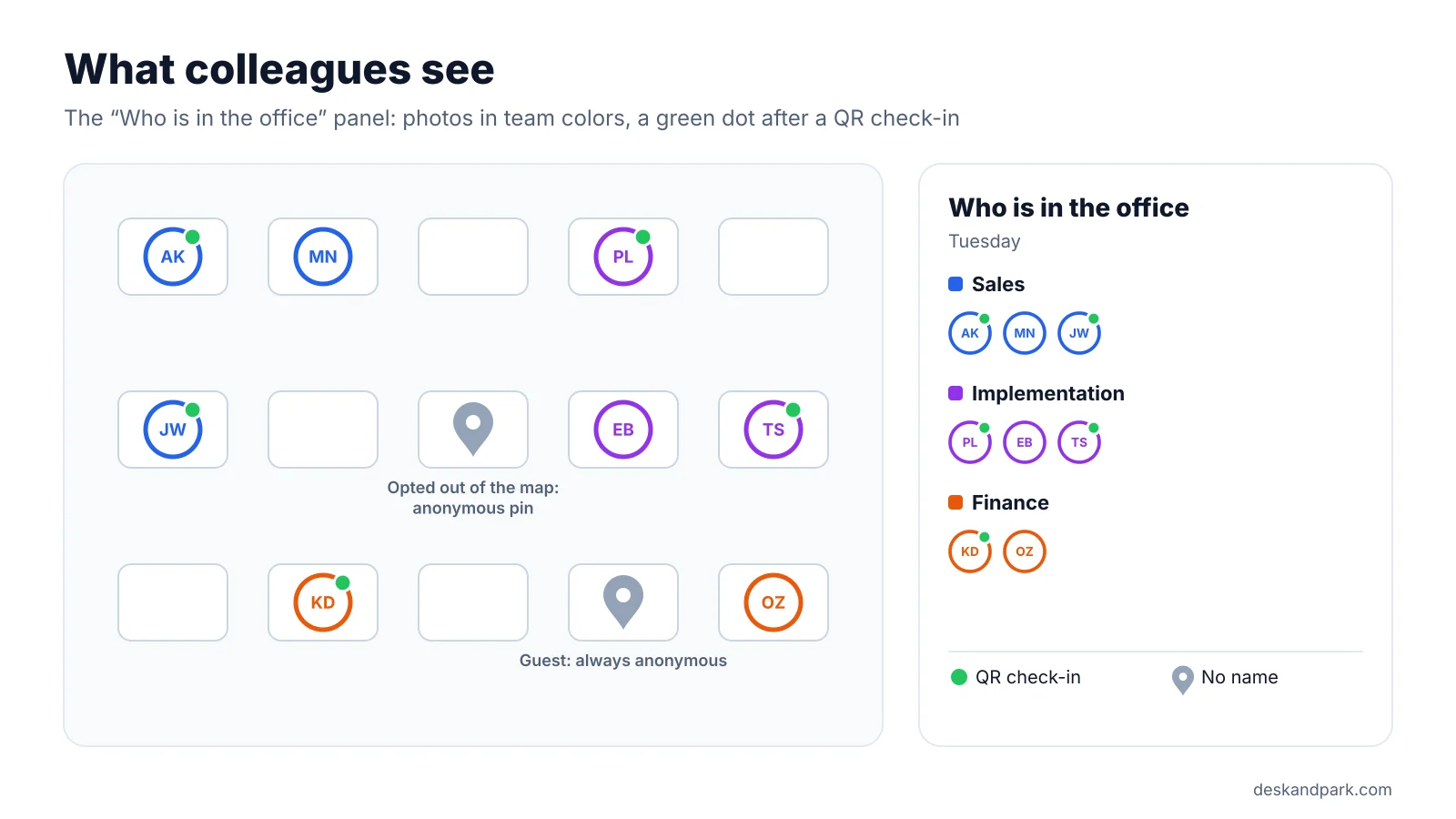
- The "Who is in the office" panel shows people with a booking for any day, including future days, and any floor. Each person appears as a photo or initials, outlined in their team's color. Next to the map is a list grouped by team. We cover it in detail in Who is in the office today? Check before you leave home.
- A green dot appears after a QR check-in using the sticker on the desk. It means nothing more than that.
- When booking, you see a strip with the faces of people coming in that day and a team color legend. That makes it easier to pick a desk next to your own people.
Anyone can step out of this view. In Settings → Profile, turn off "Show me on the office map." That person's desk then becomes an anonymous pin, and their name is left out of the data the server sends too, so it cannot be read from the page code. The booking still works, and so does QR check-in.
Two rules apply on their own, with no setting:
- Guest bookings are always anonymous. A guest without an account never appears on the map by name.
- An assigned desk that has not been released does not count as presence. A board member with an assigned space is not "in the office" just because the desk belongs to them.
If a company wants the map anonymous for everyone, not only for people who opt out, it can ask for that. The platform operator turns on an anonymous map for the whole organization.
Vertical privacy: what leadership sees
Vertical means upward, to leadership and managers. By default, there are no names here.
Board Reports show aggregate data for a period from 7 days to a year:
- utilization against bookable spaces,
- usage by department and team,
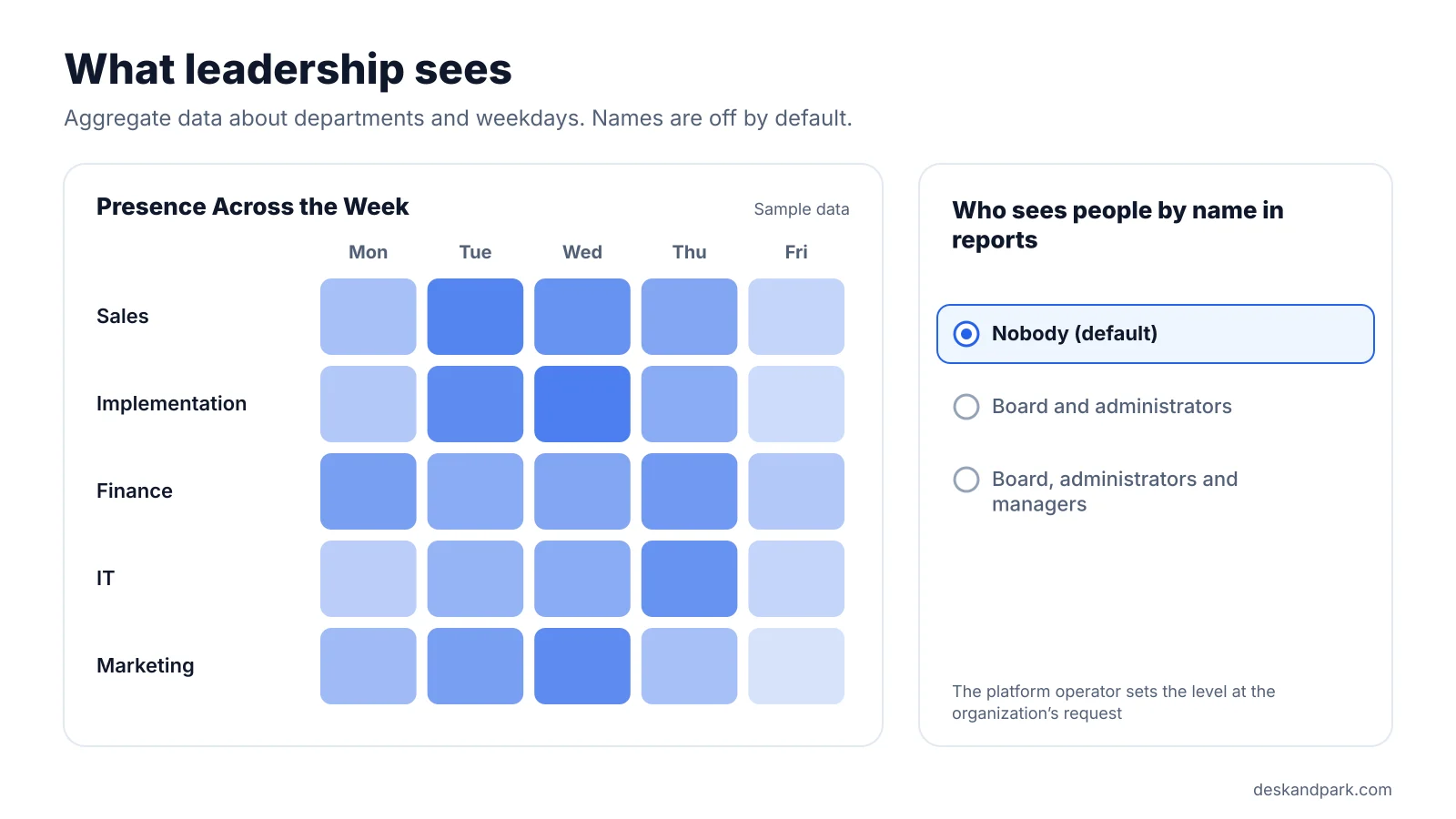
- the "Presence Across the Week" heat map, which is each department's share of attendance by weekday,
- the P95 daily peak and the sharing ratio (spaces per 100 people),
- the share of empty bookings per floor, meaning bookings without a check-in.
That is enough to tell whether the policy works and how many spaces you really need. It does not require knowing who exactly was in on Tuesday.
Who can expand the data into a list of people depends on the "Who sees people by name in reports" setting:
| Level | Who sees people by name |
|---|---|
| Nobody (default) | Nobody. Reports show aggregate data only. |
| Board and administrators | Board members and administrators, across the organization. |
| Board, administrators and managers | Managers as well, but only within their own scope. |
The platform operator sets the level at the organization's request. It is a company decision, not a switch someone flips in passing.
The manager role exists only on the Enterprise plan. A manager sees Team Reports narrowed to the departments and teams an administrator assigns. Even at the most open level, they never see people outside their scope. Read more in our article on team reports for managers.
AI recommendations for the board are built on aggregated data only, without names. The model receives numbers about departments and days, not lists of people. How to read them is covered in our article on AI recommendations for the board.
What the app does not do
This part is worth reading out loud in a meeting with employee representatives.
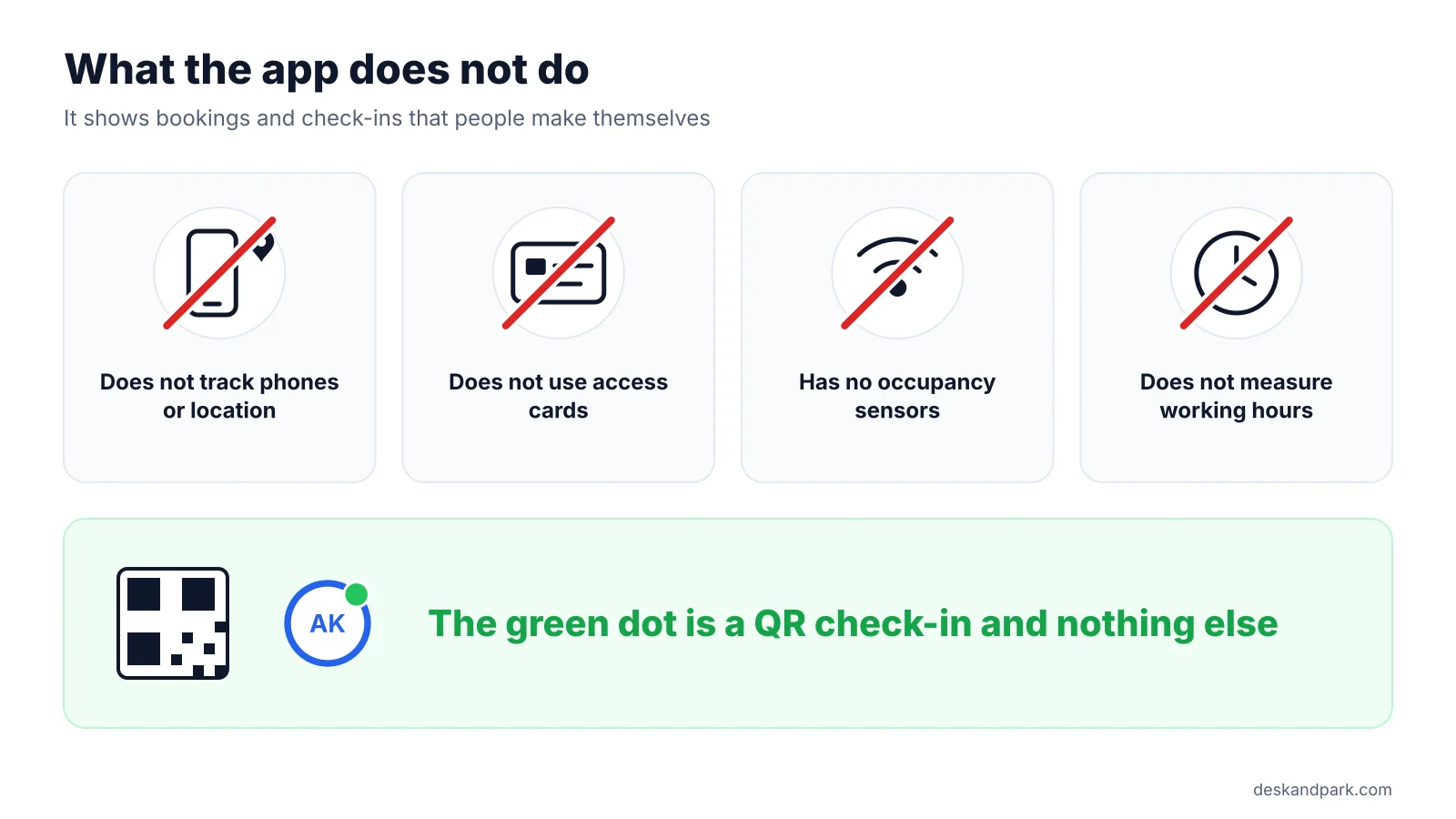
- It does not track phones or location. The app does not know where you are.
- It does not use access cards or occupancy sensors. They are not part of the product.
- The green dot is a QR check-in and nothing else. Someone scanned the sticker by the desk. It does not mean that person sat at the desk all day.
- It does not measure working hours. There is no clock-in time, clock-out time or break tracking.
Desk & Park shows bookings and check-ins, which are things people did themselves in the app. We keep the full list of what the product does not do yet, or will not do, in What Desk & Park doesn't do yet.
How to introduce a presence view at your company
The same feature can be a collaboration tool or a source of unease. The difference usually lies in how the company presents it. Five steps:
- State the goal plainly. "We want to make it easier to arrange to work together." Not "we want to know who comes in." If the goal is collaboration, say so in the first sentence.
- Tell employees before launch. Not on the day the map appears. A ready-made text is below.
- Show the opt-out from day one. Include the "Settings → Profile" path in the announcement and in training. Opting out does not require explaining yourself to anyone.
- Consult your data protection officer or legal counsel on the rollout. Work out with them how to describe the processing under the GDPR and what information to give employees. We do not interpret regulations, and this article is not legal advice.
- Decide on the "Who sees people by name in reports" level. The default "Nobody" is enough for most leadership teams. If you want a different level, write down who will see people by name and why, and share that with employees.
A template announcement for employees
Copy it, fill in the brackets and send it before launch.
Subject: From [date], you can see which teammates will be in the office
Hi everyone,
from [date], we book desks [and parking spaces] in Desk & Park. We are doing this to make it easier to arrange to work together and to have a guaranteed space, not to check how much time anyone spends in the office.
What you will see. On the map and in the "Who is in the office" panel, you will see photos or initials of people who booked a space for the chosen day, in team colors. A green dot means someone checked in with the QR code by their desk.
What nobody will see. The app does not track your phone, your location or your access card, and it does not measure working hours.
What leadership sees. Aggregate data about departments and weekdays, without names.
How to opt out. Settings → Profile → turn off "Show me on the office map." Your desk will then appear as an anonymous pin. You can do this from day one, and you do not have to explain it to anyone.
Questions. [name, email] or our data protection officer: [contact].
[signature]
The "What leadership sees" sentence is true with the default "Nobody" setting. If your organization chooses a different level, change that sentence and say who sees people by name. It is worth showing the announcement to your data protection officer before sending it.
Where the data lives
- A separate database for every organization. Your company's bookings, maps and audit log live in its own PostgreSQL database, not in tables shared with other customers. Why that matters is covered in Why your workplace data needs an isolated database.
- The European Union. Databases are in Frankfurt and the application runs in the Netherlands. Backups are encrypted every night.
- An audit log. Changes in the organization are recorded: who, what and when. Details in our article on the audit log and support access.
- A data processing agreement. The data processing agreement (DPA) is published, and our privacy policy describes how data is processed. Exporting and deleting the organization's data is available in the settings.
Scope: what this article and the product do not cover
Two settings are not switches in the customer's admin panel: the anonymous map for the whole organization and the "Who sees people by name in reports" level. The platform operator turns both on at the organization's request. Individually, anyone can opt out of the map on their own.
Desk & Park does not assess whether your rollout complies with the GDPR, and it does not replace a conversation with your data protection officer or legal counsel. This article describes how the product works and is not legal advice.
FAQ
Is desk booking employee monitoring?
Desk & Park shows bookings and QR check-ins that people make themselves, not their location or working time. The app does not track phones, access cards or working hours. Whether your rollout needs additional steps under the GDPR is for your data protection officer or legal counsel to assess.
Will a manager see who did not come in?
Not in reports by default: with the "Nobody" setting, they show aggregate data only. If the organization chooses the level that includes managers, a manager on the Enterprise plan can expand the data into a list of people, but only within their scope. In the "Who is in the office" panel, a manager sees the same as any colleague: who booked and who checked in, unless someone has opted out of the map.
Can I hide myself on the map?
Yes. In Settings → Profile, turn off "Show me on the office map." Your desk will appear as an anonymous pin, with no name in the server data either, and your booking and check-in keep working.
Can a company turn names off completely?
Yes. At the organization's request, the platform operator turns on an anonymous map for everyone. In reports, names are off by default thanks to the "Nobody" setting.
Where is the data stored?
In a separate PostgreSQL database for each organization, in Frankfurt, with the application in the Netherlands. Backups are encrypted every night, and an audit log records changes. The data processing agreement (DPA) is published on our website.
#DeskAndPark#Privacy#Gdpr#EmployeeMonitoring#HybridOffice
Ask AI about this article
Get a summary or a second opinion: each button opens the assistant with a question about this article.